WHAT IT DOES
From the card to the keepers, without leaving the app.
Valkyrie covers the stretch between coming home and opening your editor. Everything below happens in the order you would do it anyway.
01 MENU BAR
Valkyrie is always watching.
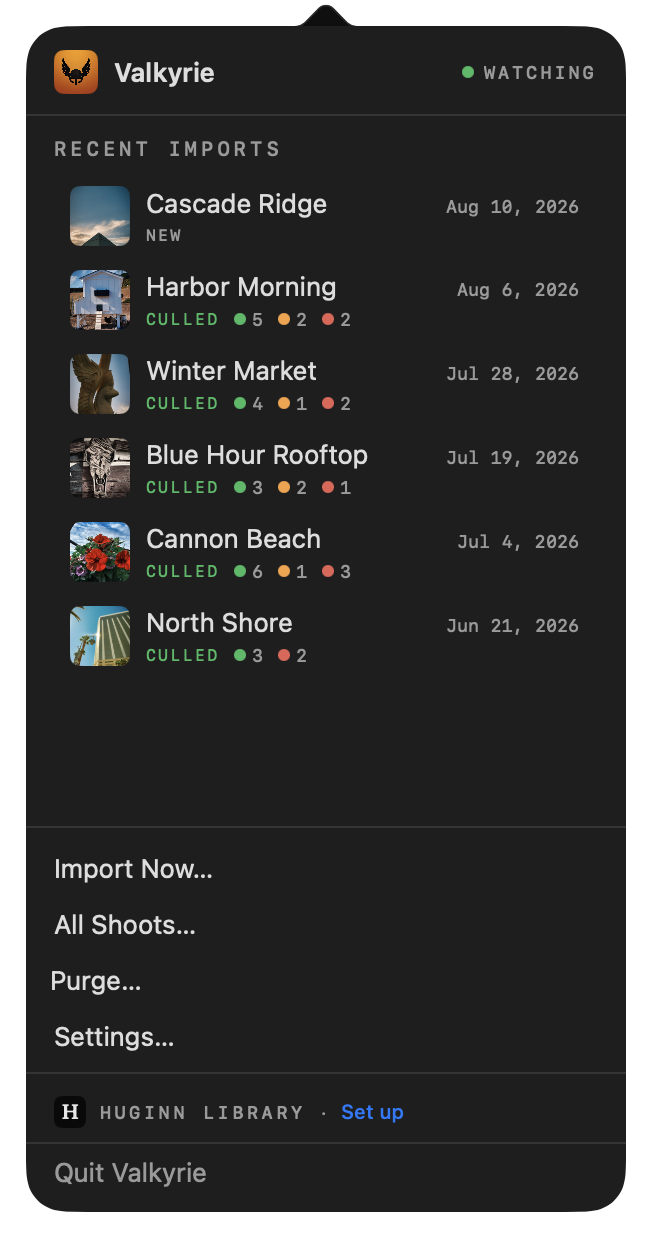
No Dock icon, no window to keep open. Valkyrie sits in the menu bar and recognises your cameras and SD cards the moment they mount, reports what is on them, and offers to import. Recent shoots stay one click away with their keep and reject counts beside them.
- No Dock icon, no library to import into and no project file to keep, so Valkyrie adds nothing you have to maintain
- Recognises cameras and SD cards the moment they mount, over USB or a card reader, so there is nothing to launch first
- Runs on macOS 13 Ventura and later
02 IMPORT
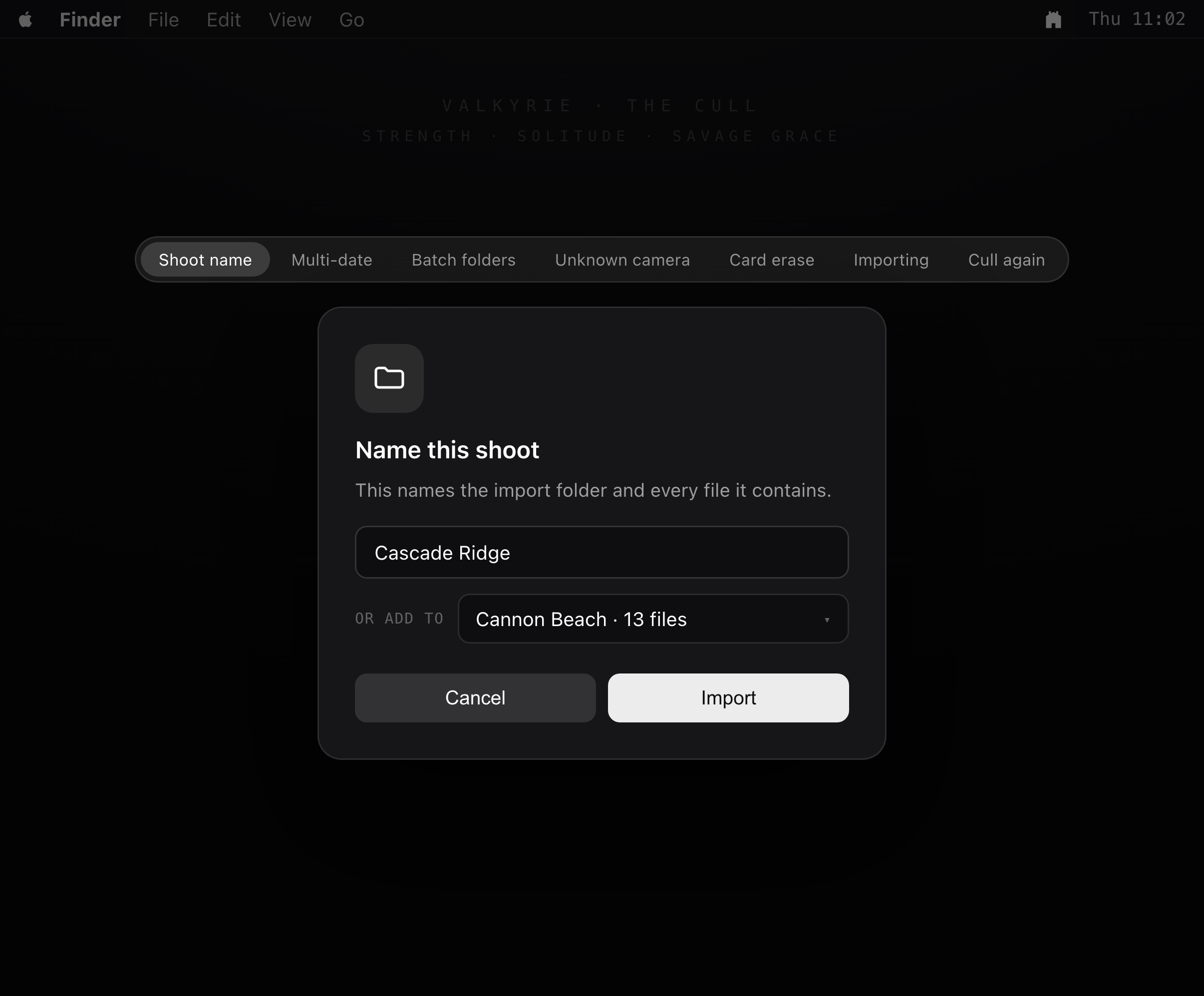
One card, two days, two shoots.
Most importers assume one card is one shoot. Valkyrie reads the capture dates and splits accordingly, so a card you shot Friday and Sunday arrives as two shoots with two names. RAW and JPEG pairs stay together, sidecars follow their originals, and duplicates go by a policy you set once.
- Reads capture dates and splits a card shot across several days into separate shoots, so a weekend does not land as one undifferentiated folder
- Sidecar files stay with the originals they belong to, so ratings and edits you have already made are not orphaned
- Copy leaves the card intact as a second copy until you are sure, or move clears it as it goes so you can keep shooting
- Erases the card only after the import has been verified, and only if you ask it to
03 NAMING
Your naming convention, applied for you.
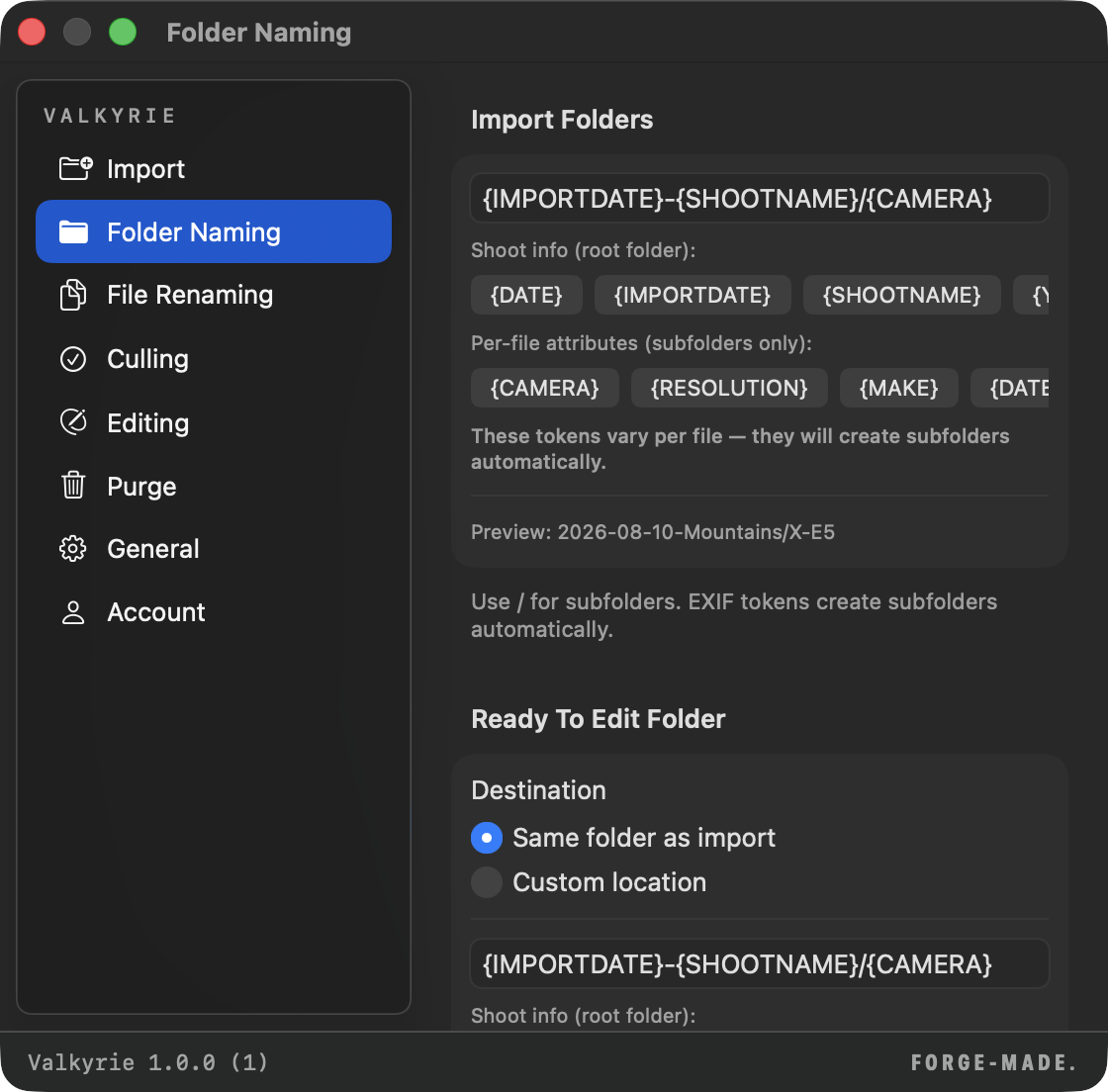
Build a folder and filename pattern out of tokens once and every import follows it: date, camera body, lens, shoot name, sequence. One token reads the Fujifilm film simulation straight out of the EXIF, so a shoot can sort by the look you shot it with.
- Build a pattern once from date, camera body, lens, shoot name and sequence, and every import follows it without you renaming anything
- A film simulation token reads the recipe straight out of the Fujifilm EXIF, so a shoot can sort by the look you shot it with
- A Ready To Edit folder collects whatever survives the cull, so your editor opens on the keepers and nothing else
04 THE LOUPE
One frame, one key, next.
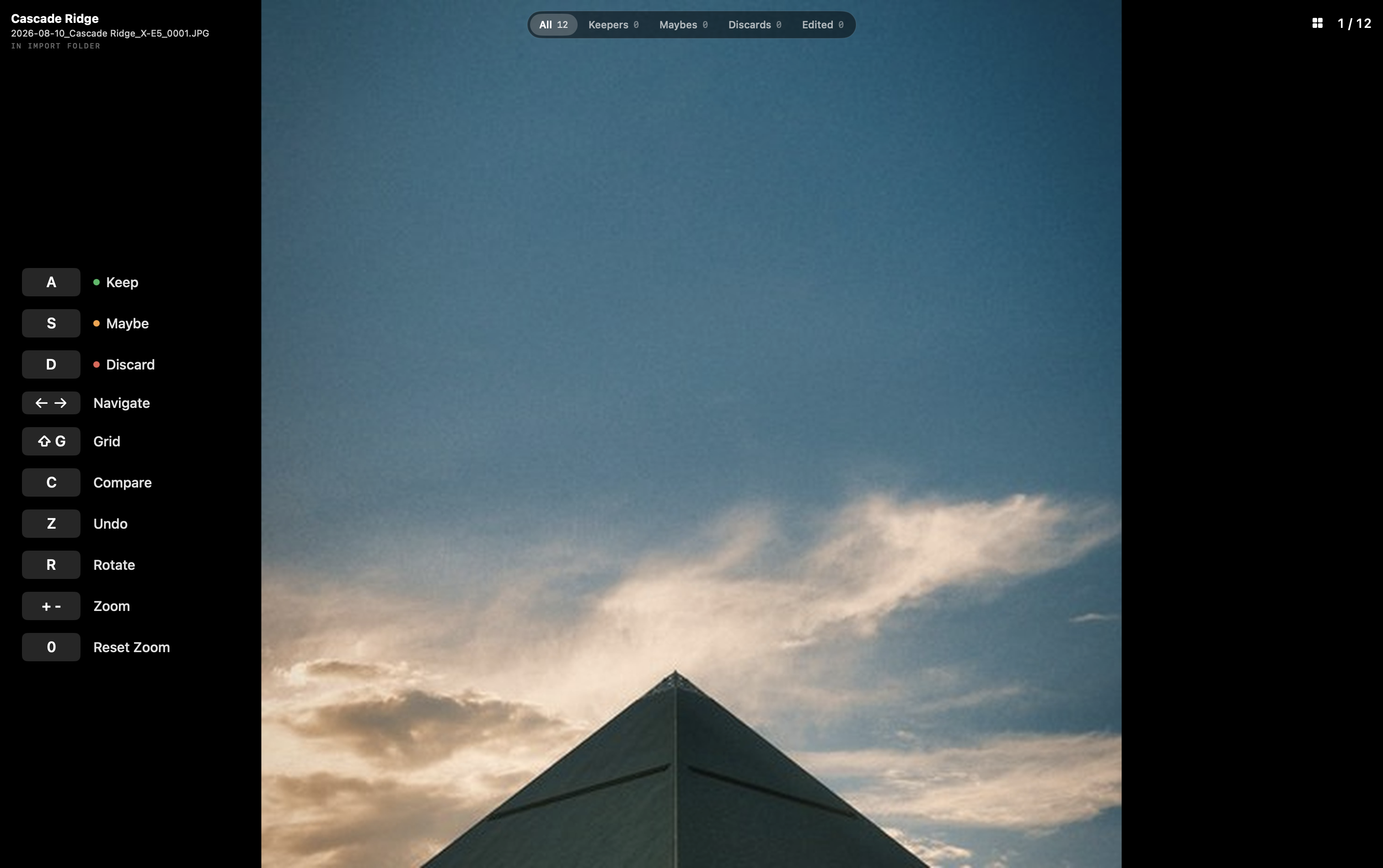
Fullscreen, black surround, one photograph at a time. Keep, maybe, discard and undo are all one keystroke, so your hand never leaves the keyboard and your eye never leaves the frame. The verdict registers as a small mark at the edge. Nothing tints the image and nothing overlays it.
- Keep, maybe, discard and undo are one keystroke each, so your hand never leaves the keyboard and the rhythm never breaks
- Compare mode puts two nearly identical frames side by side, so the hardest calls get made with confidence instead of guesswork
- The Shoot Scope stays visible at all times, so you always know which shoot you are inside and never cull the wrong one
05 THE GRID
The whole shoot, when you need to see its shape.
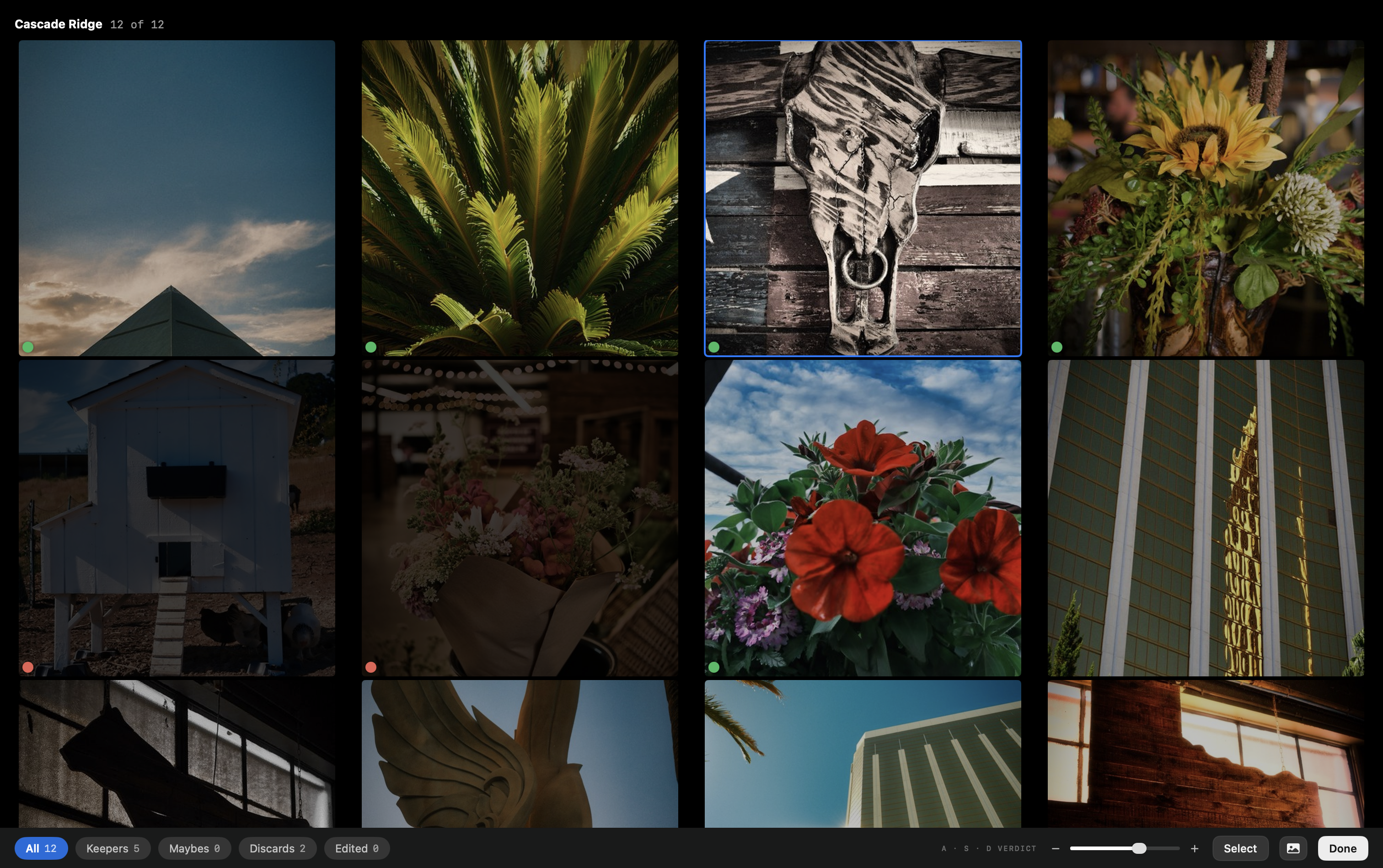
Sometimes you need the shape of the whole shoot rather than one frame at a time: the burst you shot six of, the setup that did not work. The grid is a contact sheet, and it opens clean, with no selection chrome until you ask for it. A summary at the end shows what you kept against what you cut.
- Move between the contact sheet and the fullscreen loupe without losing your position, so you can zoom out to judge a burst and drop straight back in
- A summary at the end shows what you kept against what you cut, so you see the shape of the shoot before committing to it
- Review only the keepers in a final pass, so nothing marginal survives on momentum
06 PURGE
Always a way back.
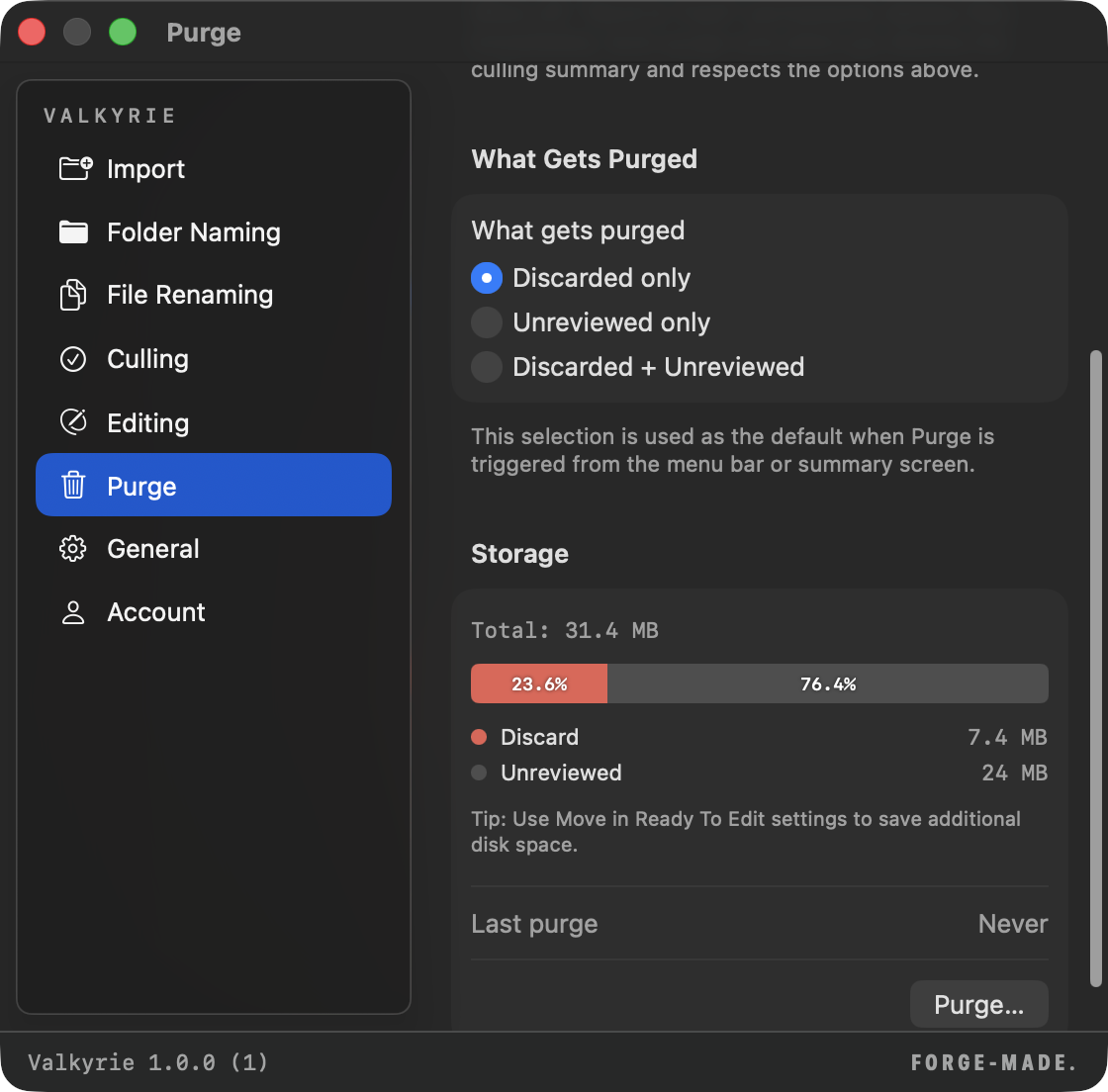
A year of shooting leaves gigabytes of frames you already rejected. Purge finds them, but nothing about it is a leap of faith: you see what you would reclaim before a file moves, deletions go to the Trash by default and stay reversible from the Recent Actions trail, and the one operation that cannot be undone tells you so in those words before you confirm it. You can clear a drive without wondering what you just lost.
- Shows exactly how much space you would get back before a single file moves, so you can decide whether it is even worth doing
- Anything sent to the Trash stays reversible from the Recent Actions trail, so a purge is never a one-way door by accident
- Permanent deletion is labelled permanent, in those words, before you confirm it
07 CROP
Reframe without leaving the cull.
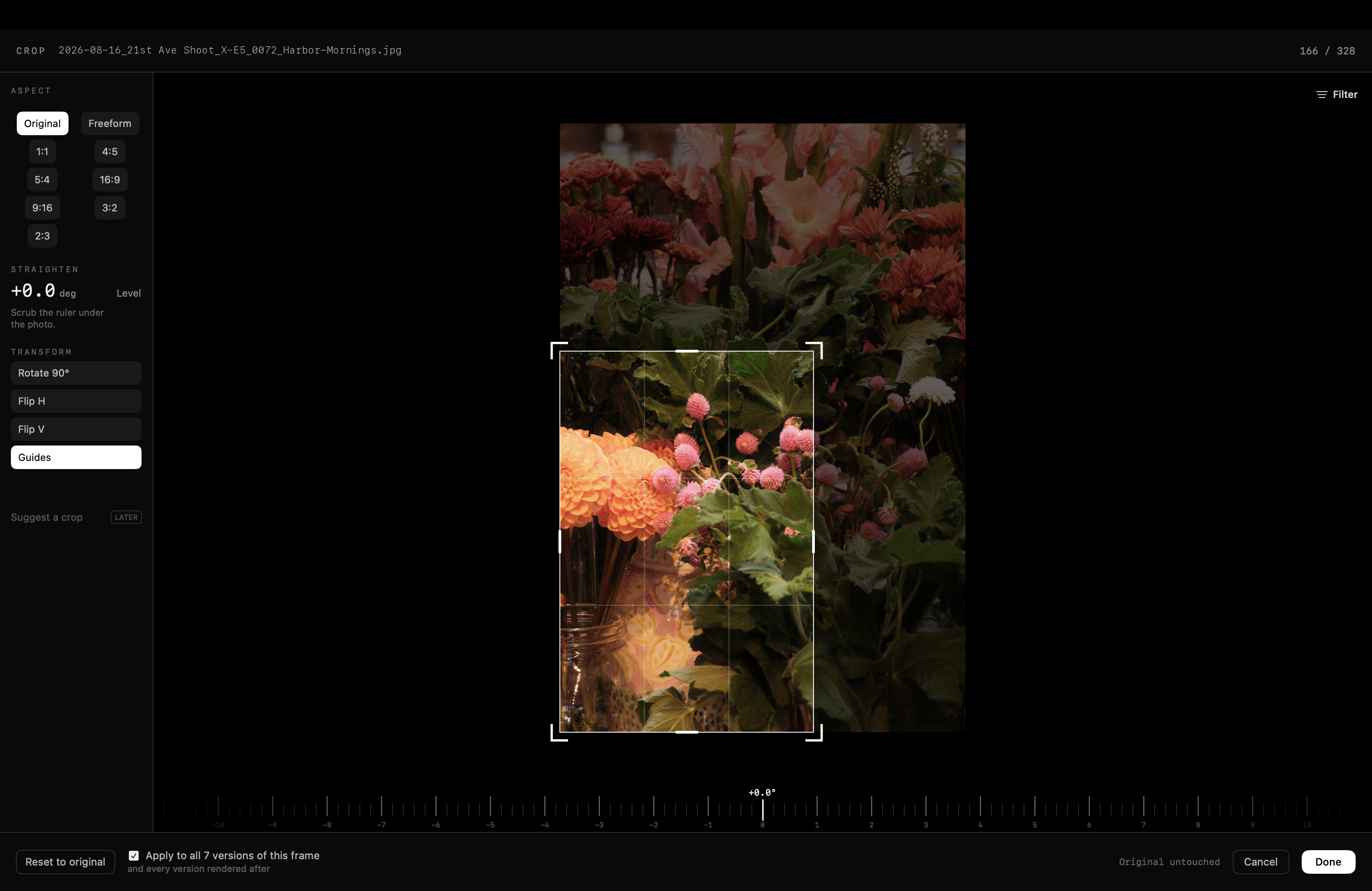
Composition is a culling decision. A shot you would keep at a tighter crop is a keeper, and judging it as shot means rejecting frames you would have used. So crop, straighten and rotate live in the cull, on one key, and nothing is baked in: your original file is never rewritten and the crop stays adjustable forever, so you can loosen it next year as easily as you tightened it tonight. Apply it once and every version of that frame inherits it, including looks you render later.
- Your original file is never rewritten, so a crop is a decision you can revisit rather than damage you have to undo
- Straighten a horizon on a scrubable ruler, rotate, flip, or crop to a delivery shape, without opening an editor
- One crop applies across the whole frame: the RAW, the camera JPEG, and every look you render from it, then or later
08 VIRTUAL BRACKETING
Your camera renders your keepers.*
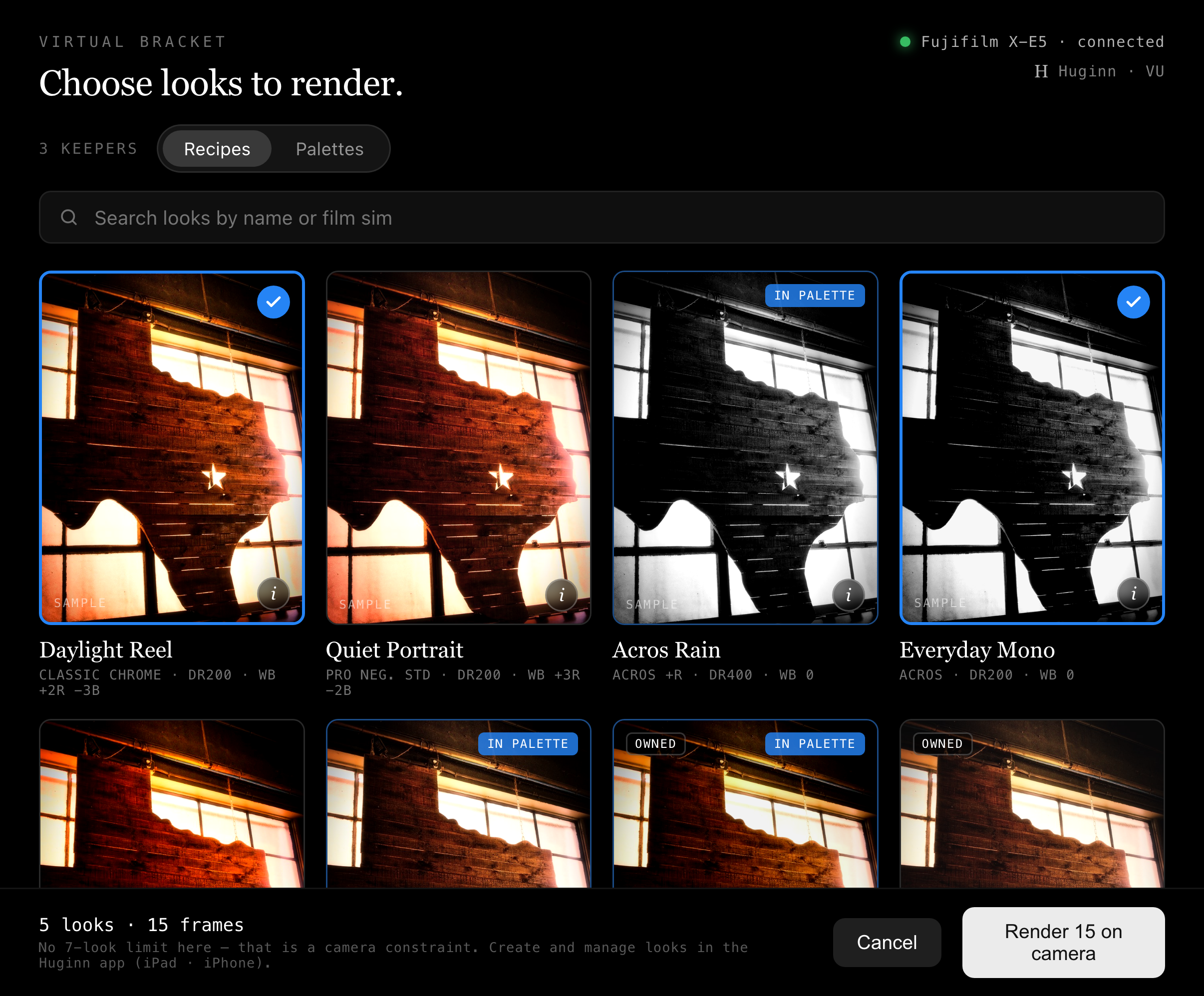
Plug the camera back in and Valkyrie sends your keepers to it, letting the body's own processor re-render each RAF through your Huginn recipes. Not a preset approximating a look: the same engine that made the JPEG in camera. Queue a shoot across every recipe you own and come back to a contact sheet. Needs an active Huginn Pro subscription, and Valkyrie reads those recipes from your own iCloud, which is the only network access it has.
- Every frame is rendered by the camera's own processor, so what comes back is what the sensor would have produced rather than a preset approximating it
- Queue a whole shoot across every recipe you own and walk away, so the desk does the work while you do something else
- Reads your Huginn library, the custom film simulations and Film Palettes you built, from your own iCloud account and never from a Forge server
* Virtual Bracketing requires an active Huginn Pro subscription. That subscription belongs to Huginn, not to Valkyrie, and everything else on this page works without it.